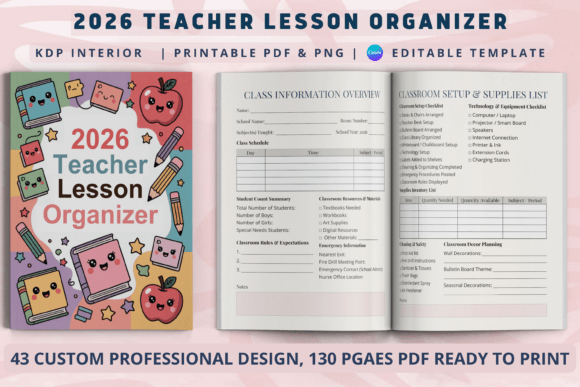
2026 Teacher Lesson Organizer
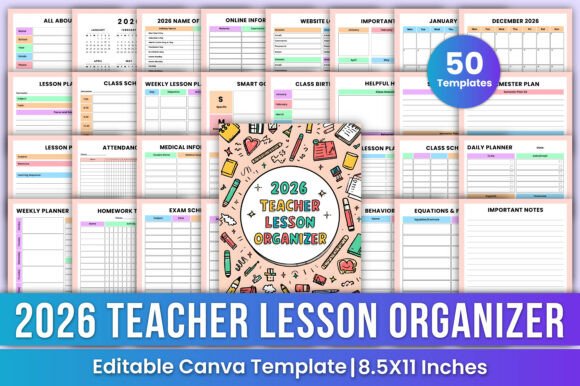
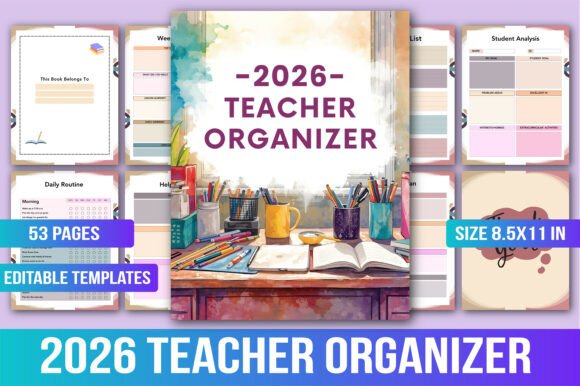
Teaching is dynamic, demanding, and deeply rewarding—but it’s also relentless. Without a clear system, even the most passionate educators can feel buried under lesson prep, grading, parent communication, and administrative tasks. That’s where the 2026 Teacher Lesson Organizer steps in—not as another to-do list, but as a thoughtful, integrated framework designed specifically for real classroom life in 2026.
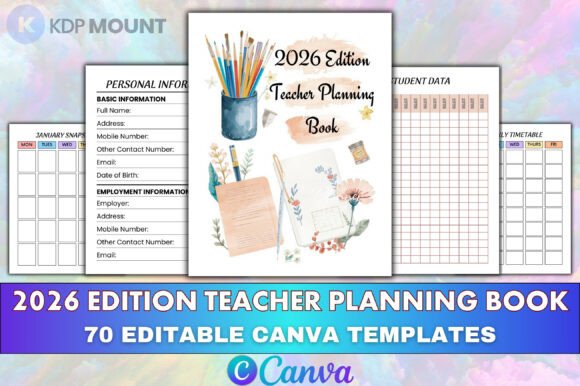
This isn’t just a calendar with blank lines. It’s a purpose-built tool that aligns with how teachers actually plan, reflect, adjust, and grow. Whether you’re a first-year educator mapping out your first unit or a veteran refining long-term curriculum goals, the organizer supports both intentionality and flexibility. And with the 2026 Teacher Lesson Organizer – Canva Editable Template, you gain the ability to personalize layouts, update fonts, add school branding, or adapt pages for hybrid learning—all without design experience.
Common Missteps—and Why They Cost Time (Not Just Paper)
Many teachers download or buy a planner with high hopes—only to abandon it by February. It’s rarely about motivation. It’s usually about mismatched expectations and overlooked practicalities.
Mistake #1: Assuming “Editable” Means “Effortless Customization”
Some users assume the Canva Editable Template lets them change anything instantly—like swapping entire sections or auto-populating student names across weekly plans. In reality, Canva’s editing strength lies in visual customization (colors, fonts, layout tweaks), not database-style automation. Trying to force complex functions—say, linking attendance data to grade tracking—leads to frustration and duplicated work.
Better approach: Use the editable template for what it does best: tailoring appearance and structure. Add your school logo, adjust column widths for longer assignment titles, or create separate tabs for co-teaching partners. Save data-heavy tasks (like syncing grades) for dedicated tools—and use the organizer to plan and reflect on that data instead.
Mistake #2: Skipping the “Class Information Overview” Setup
It’s tempting to flip past the early pages (“Teacher Profile,” “Class Information Overview,” “Seating Chart Planner”) and jump straight to weekly lesson plans. But those foundational sections are where clarity begins. Without clearly noting class size, IEP accommodations, tech access, or even preferred communication channels for families, lesson plans often miss critical context.
Real example: A middle school science teacher skipped updating her “Student Contact Information” page. When a parent emailed about an overdue project, she couldn’t quickly locate the student’s support plan—or remember whether they had extended deadlines built in. What should’ve taken two minutes turned into 15 minutes of digging through emails and files.
Better approach: Block 30 minutes during pre-planning week to complete these setup pages—not perfectly, but thoroughly enough to be useful. Revisit them quarterly, not annually. A seating chart updated after winter break? That’s realistic. A static one from August? Less so.
Mistake #3: Treating the “Year-at-a-Glance” as Decorative
The 2026 Year-at-a-Glance Calendar isn’t just for marking holidays. It’s your strategic filter. Many teachers overlook how much planning energy gets wasted when big-picture dates—state testing windows, professional development days, report card deadlines, or even district-mandated curriculum rollout dates—are treated as afterthoughts.
Better approach: Before drafting any monthly overview, highlight non-negotiable dates in red: standardized testing weeks, parent-teacher conference blocks, curriculum alignment deadlines. Then build backward. If your district rolls out new literacy benchmarks in March, use February’s “Curriculum Overview” page to map scaffolding activities—not scramble in week one of March.
What to Check Before You Commit
Before downloading or purchasing, ask yourself three practical questions:
- Does it match your actual workflow—not an idealized version? If you plan lessons daily (not weekly), prioritize organizers with robust “Daily Lesson Notes” over heavily weighted weekly spreads.
- Is the Canva template truly editable in your version of Canva? Free Canva accounts support most text and layout edits—but advanced features like custom font uploads or multi-page exports may require Canva Pro. Test a single page first.
- Are key tracking tools designed for speed—not just completeness? A 12-column “Grade Tracker” looks thorough, but if entering one score takes 45 seconds, you won’t use it consistently. Look for clean, minimal rows with intuitive headers (e.g., “Assignment,” “Due Date,” “Score,” “Notes”).
Using the Organizer to Reduce, Not Add, Cognitive Load
The goal isn’t to document everything—it’s to reduce mental clutter. The 2026 Teacher Lesson Organizer works best when used selectively and intentionally.
For instance, the “Behavior Log” shouldn’t become a courtroom transcript. Instead, use it to spot patterns: Is a student disengaged during whole-group instruction but focused during hands-on stations? Does a particular transition time trigger repeated disruptions? Jot down concise observations—then review them every two weeks alongside your “Student Progress Notes.” That’s where insight emerges.
Likewise, the “Parent Communication” section isn’t meant for logging every email. Reserve it for meaningful touchpoints: a quick note before a conference, a summary after a behavior strategy meeting, or a shared win (“Sam led his group discussion today—here’s how we supported that”). These entries become invaluable during evaluations or IEP meetings—not because they’re exhaustive, but because they’re intentional.
A Final Note on Sustainability
An organizer only works if it lasts. Avoid overloading early pages with elaborate color-coding or decorative elements that fade or smudge. Choose pens that don’t bleed through, and consider printing double-sided pages only for low-ink sections (like calendars). If using the Canva template digitally, save versions: “2026_LessonOrganizer_FINAL,” “2026_LessonOrganizer_BACKUP,” and “2026_LessonOrganizer_DRAFT” —so one accidental click doesn’t erase hours of planning.
Ultimately, the 2026 Teacher Lesson Organizer succeeds not because it’s perfect—but because it meets teachers where they are: balancing rigor with realism, structure with responsiveness, and professionalism with humanity. When chosen thoughtfully and used flexibly, it doesn’t just organize your year—it helps you reclaim space for what matters most: teaching well, growing steadily, and showing up fully—for your students and yourself.